What Are ReSizable Bar (ReBAR), Above 4G Decoding, and CSM
17/02/2026
Resizable BAR (ReBAR), Above 4G Decoding, and CSM — these three BIOS settings work together, and all of them are required for GPUs to function properly. These settings not only help increase your mining income by anywhere from 5% to 90% (depending on the GPU model), but they also improve gaming performance and enable efficient work with LLMs and neural networks.
- Above 4G Decoding — this allows the system to address devices with more than 4 GB of memory. Without it, the motherboard cannot correctly allocate address space for GPUs with 6, 8, 12, or more GB of VRAM. For mining rigs with multiple GPUs, this setting is essential.
- Resizable BAR (ReBAR) — this technology lets the CPU access the entire GPU memory at once, instead of in 256 MB chunks. ReBAR removes that limitation, enabling faster data exchange between CPU and GPU. AMD calls it Smart Access Memory (SAM), and ASRock refers to it as Clever Access Memory (C.A.M.) — all are the same concept. For mining, this is critical: without ReBAR, some cards lose up to 90% of their hashrate or may not work at all.
- CSM (Compatibility Support Module) — this is the legacy BIOS compatibility mode. If CSM is enabled, ReBAR will not function. To support ReBAR, you need a pure UEFI boot mode, which means CSM must be disabled.
ReBAR does not work without Above 4G Decoding. Above 4G Decoding does not work if CSM is enabled. The correct order is always: disable CSM → enable Above 4G Decoding → enable ReBAR.
How ReBAR Affects Mining
The impact depends on the GPU manufacturer and mining algorithm. On some cards the difference is negligible; on others, mining is impossible without ReBAR.
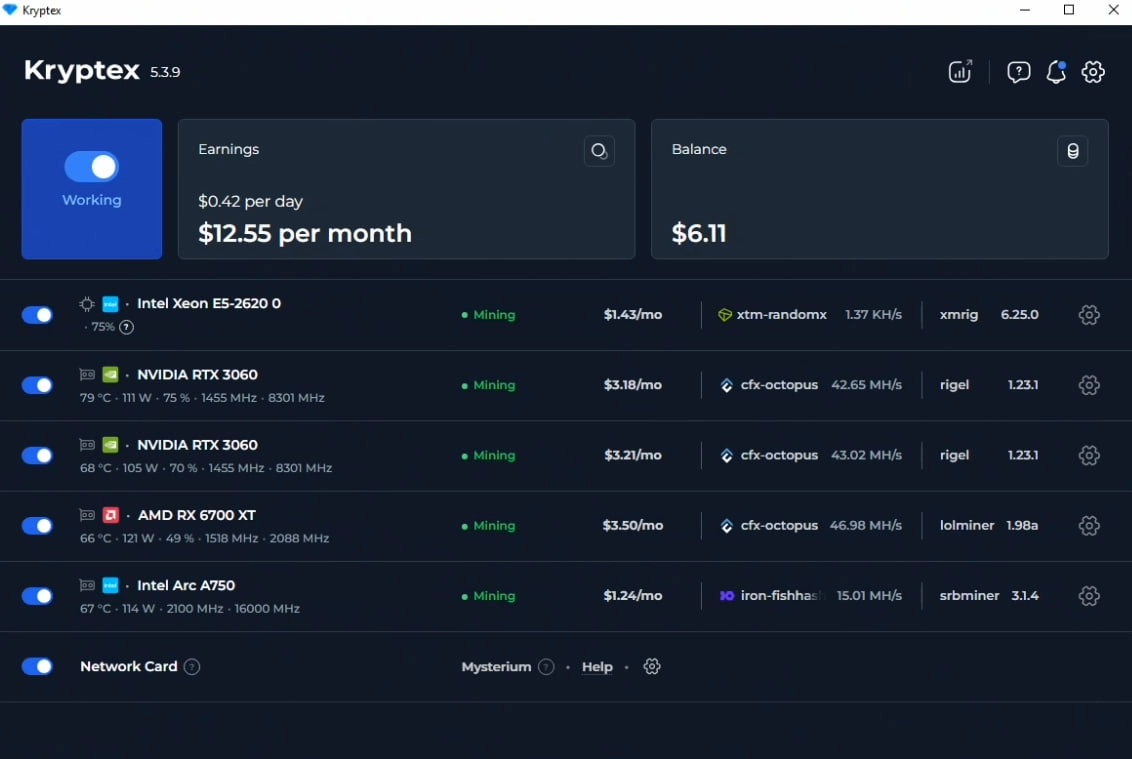
In the screenshot, you can see the Kryptex mining app for PC. It’s running with four different GPUs from Nvidia, AMD, and Intel. Maximum performance is achieved thanks to Resizable BAR (ReBAR), even on an older Intel XEON E5 platform. The app automatically detects whether ReBAR, Above 4G Decoding, and CSM are enabled, selects the most profitable coin to mine, and switches algorithms as profitability changes
Intel ARC — The Difference Is Critical
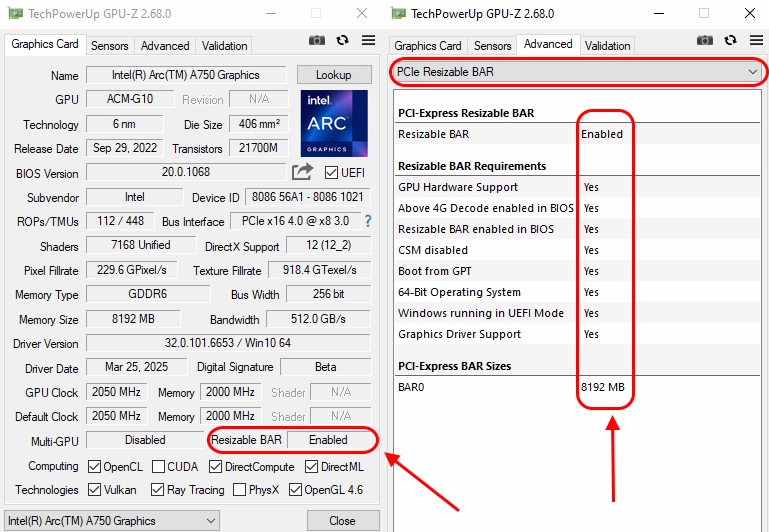
Intel designed ARC drivers with ReBAR in mind. Without it, the card loses up to 90% of its performance. Example on the KawPow algorithm: without ReBAR — around 1.5 MH/s, with ReBAR — 15–16 MH/s. A tenfold difference. Mining on Intel ARC without ReBAR is pointless.
AMD Radeon — Memory Issues
If ReBAR is configured incorrectly, the card may "see" less memory than it actually has. Example: an AMD RX 6700 XT with 12 GB of video memory, but ReBAR is set to 8 GB — the card refuses to mine the CFX algorithm, complaining about insufficient memory. With properly configured ReBAR, the problem goes away. On AMD RX 6000-9000 series cards, enabling ReBAR also provides a hashrate boost of up to 5–10% depending on the algorithm and model.
NVIDIA GeForce — Moderate Boost
On NVIDIA RTX 3000/4000 series cards, ReBAR provides a hashrate boost of about 5–10% on a number of algorithms. The exact result depends on the card model and generation. For RTX 3060 Ti, 3070, 3080, 3090, a VBIOS update via the NVIDIA Resizable BAR Firmware Update Tool may be required.
Requirements
Before enabling ReBAR, make sure your system meets the following requirements:
- CPU (official support): Intel 10th generation (Comet Lake) and newer, AMD Ryzen 3000 (Zen 2) and newer.
- Technically, Intel has supported ReBAR since the 4th generation (Haswell, 2014), but this requires an updated BIOS from the motherboard manufacturer. For older platforms, there is the ReBarUEFI mod (github.com/xCuri0/ReBarUEFI), which adds support going back to Sandy Bridge — but use it at your own risk.
- GPU: ReBAR is part of the PCIe specification and is supported by a wide range of cards. NVIDIA RTX 3000+ series (officially), AMD RX 6000+ series (officially via SAM), Intel ARC (mandatory). Older cards can also work with ReBAR: AMD RX 580 8 GB, RX 5700, Vega — via driver or ReBarUEFI mod. There is no official support for NVIDIA GTX 10/16xx and RTX 2000 series.
- Motherboard: with an updated BIOS that supports ReBAR.
- Drive: Windows must be installed on a GPT partition (not MBR). If you have MBR, the system will not boot after disabling CSM.
How to Enable ReBAR in BIOS
The general principle is the same for all motherboards. Enter the BIOS (DEL or F2 key during boot), then:
- Disable CSM (Compatibility Support Module) — Disabled
- Enable Above 4G Decoding — Enabled
- Enable Re-Size BAR Support — Enabled (or Auto)
- Save settings (F10) and reboot
The ReBAR option may not appear until Above 4G Decoding is enabled. Enable it first, save, re-enter the BIOS — and the ReBAR option will become available.
Motherboard-Specific Instructions
ASUS
Switch to Advanced Mode (F7). Navigate to:
- CSM: Boot → CSM (Launch CSM) → Disabled
- Above 4G: Advanced → PCI Subsystem Settings → Above 4G Decoding → Enabled
- ReBAR: Advanced → PCI Subsystem Settings → Re-Size BAR Support → Enabled
Supported chipsets: Z490, Z590, H470, H410, A/B/X400 Series and newer. You can update the BIOS via EZ Flash in BIOS, Armoury Crate, or USB BIOS FlashBack.
Official ASUS guide with BIOS screenshots: https://www.asus.com/support/faq/1046107/
ASRock
ASRock calls this feature C.A.M. (Clever Access Memory). Navigate to:
- CSM: Boot → CSM → Disabled
- Above 4G: Advanced → PCI Configuration → Above 4G Decoding → Enabled
- C.A.M.: Advanced → PCI Configuration → C.A.M. (Clever Access Memory) → Enabled
Intel 500-series boards support C.A.M. out of the box. Intel 400-series and AMD B450/X470 may require a BIOS update.
Official ASRock guide (C.A.M.): https://www.asrock.com/support/faq.asp?k=esc
Gigabyte
Switch to Advanced Mode (Classic). Navigate to:
- CSM: BIOS → CSM Support → Disabled
- Above 4G: Settings → IO Ports → Above 4G Decoding → Enabled
- ReBAR: Settings → IO Ports → Re-Size BAR Support → Auto (or Enabled)
If the Re-Size BAR option does not appear, update the BIOS to the latest version and clear CMOS.
Official Gigabyte guide with BIOS screenshots: https://www.gigabyte.com/WebPage/785/NVIDIA_resizable_bar.html
MSI
Switch to Advanced Mode (F7). Navigate to:
- CSM: Settings → Boot → CSM Support → Disabled
- Above 4G: Settings → Advanced → PCI Subsystem Settings → Above 4G memory/Crypto Currency mining → Enabled
- ReBAR: Settings → Advanced → PCI Subsystem Settings → Re-Size BAR Support → Enabled
On some MSI boards, the Above 4G Decoding setting may be called "Above 4G memory/Crypto Currency mining."
Biostar
Navigate to:
- CSM: Boot → CSM Support → Disabled
- Above 4G: Advanced → PCI Subsystem Settings → Above 4G Decoding → Enabled
- ReBAR: Advanced → PCI Subsystem Settings → Re-Size BAR Support → Auto
Supported chipsets: Intel Z490, B460, H410 and newer (after BIOS update).
How to Verify ReBAR Is Working
GPU-Z is the easiest way. Download the utility, launch it, and find the "Resizable BAR" line. If it says "Enabled," everything is working. The BAR value should match the card's video memory size. If the card has 12 GB but BAR shows 8 GB, the configuration is incorrect.
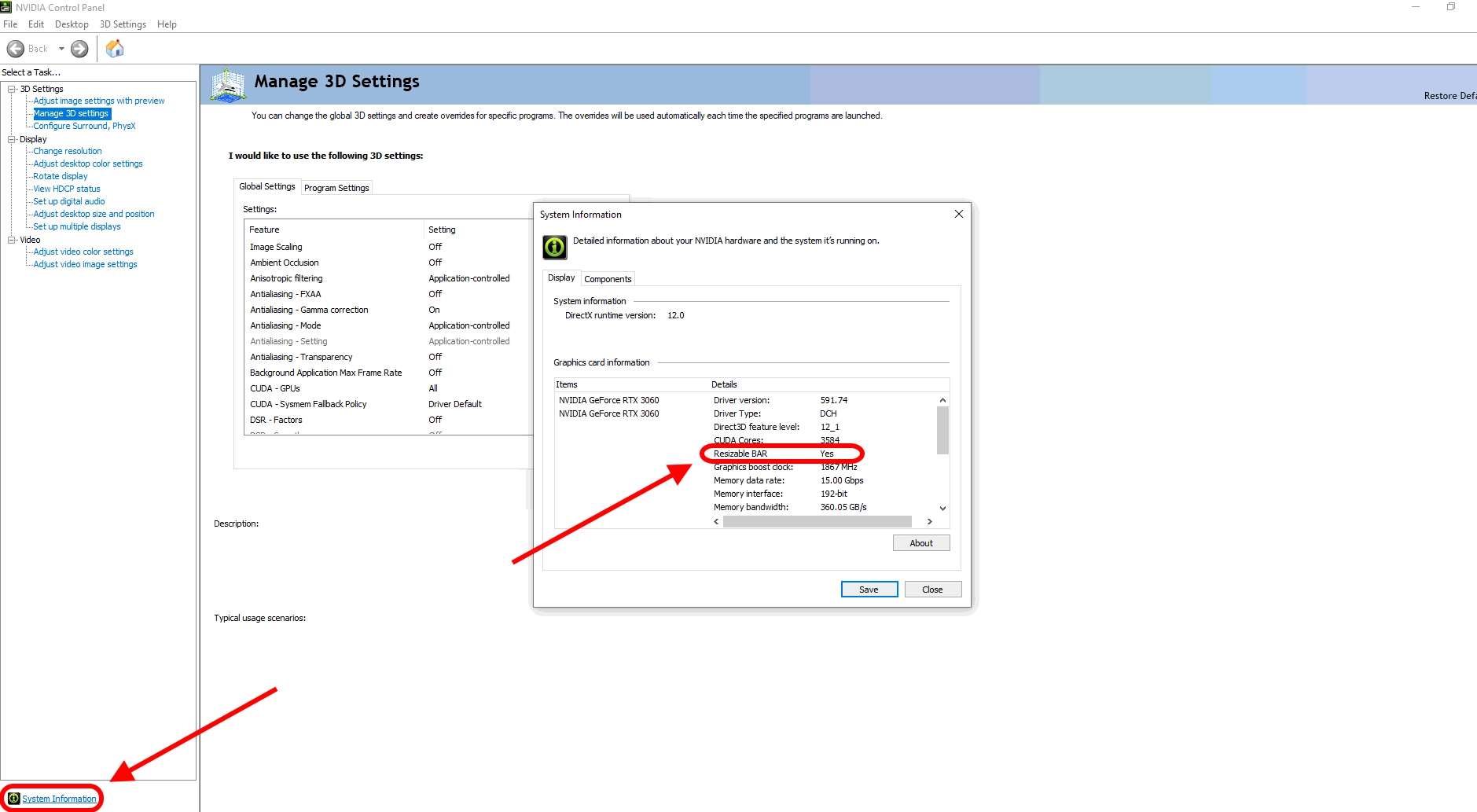
NVIDIA: open NVIDIA Control Panel → System Information (bottom left) → find the "Resizable BAR" line — it should say "Yes".
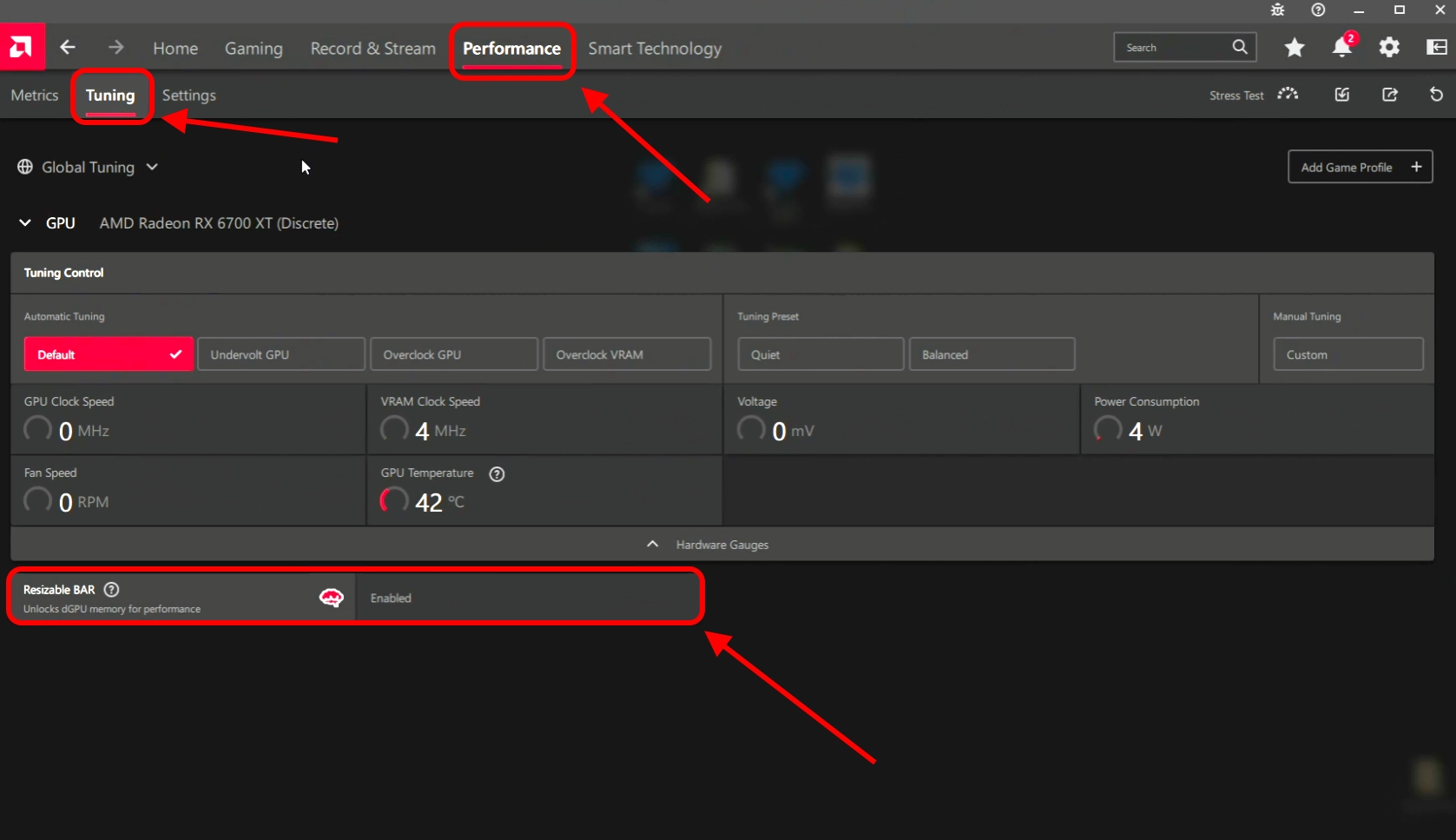
AMD: check the status of Smart Access Memory (SAM) right on the main page of the AMD Software Adrenalin Edition application in the status block. Alternatively, you can go to Performance → Tuning — at the bottom of that page you’ll see the status of Resizable BAR.
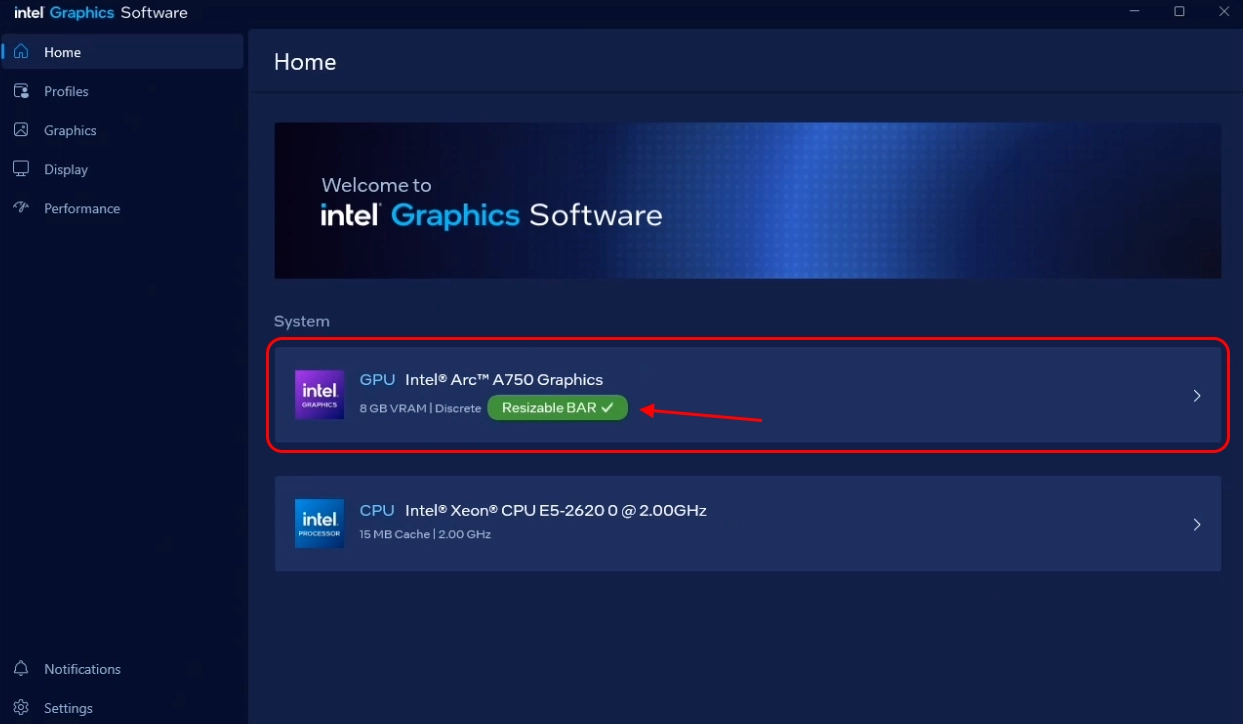
Intel: check the Resizable BAR status in the Intel Graphics Software. It’s displayed right on the main page of the application in the GPU status block.
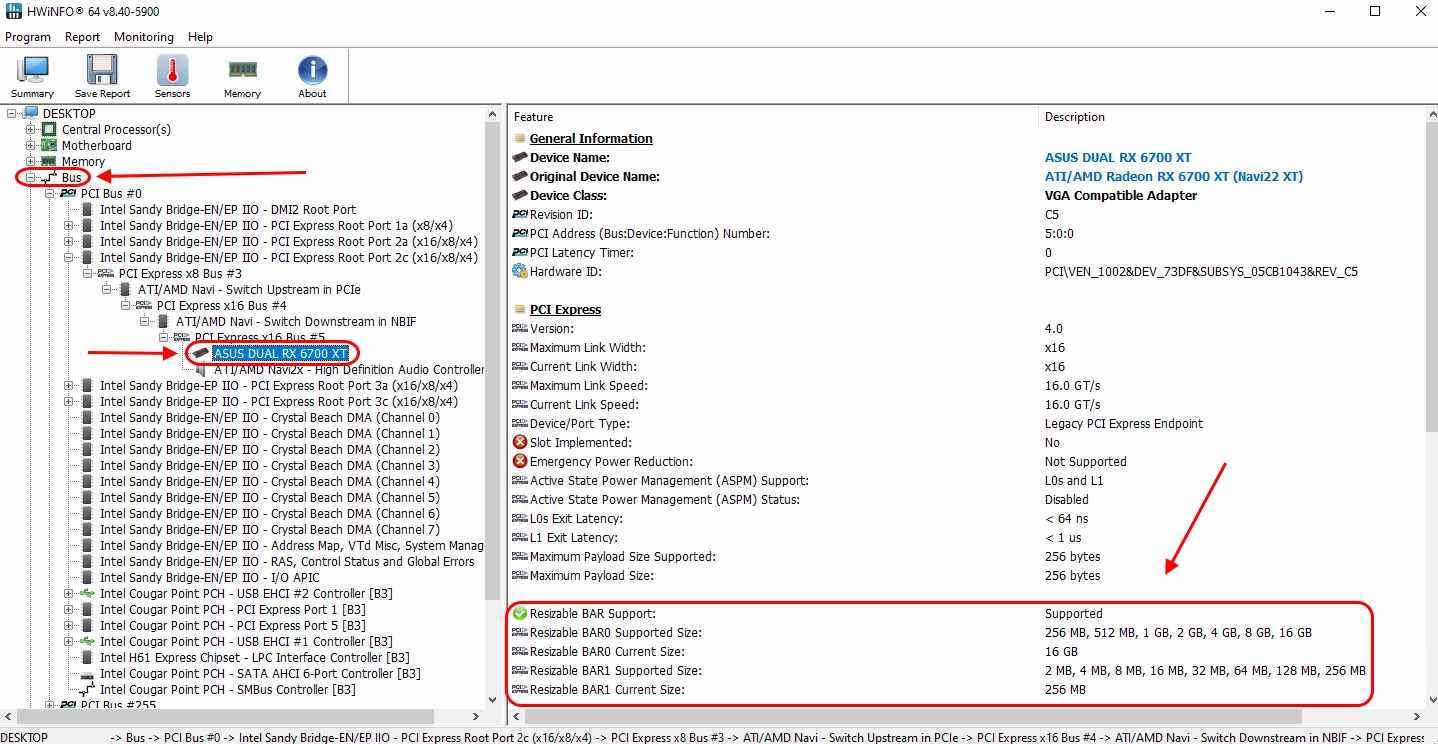
HWiNFO — shows ReBAR for all PCI Express devices. Open the program, find the GPU in the Bus section. Look at two fields: Supported Size (the maximum the card supports) and Current Size (the current BAR size). If Current Size equals the full VRAM capacity, ReBAR is working. If it shows 256 MB, it is not.
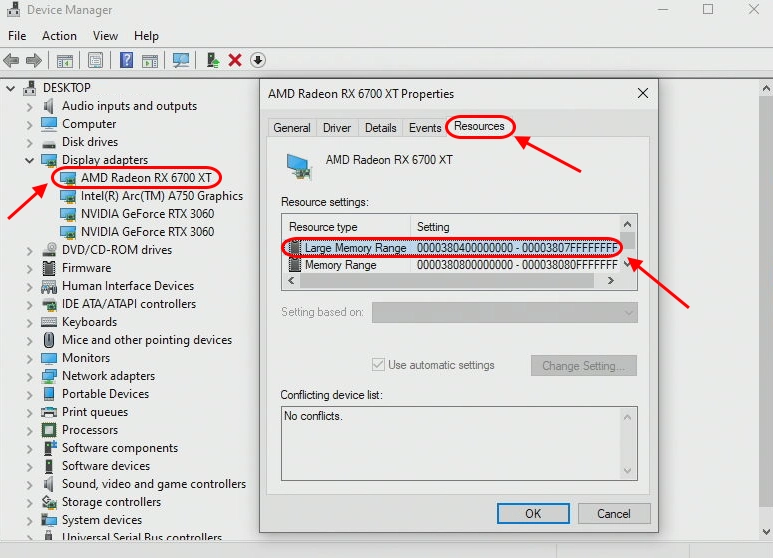
Windows Device Manager: Display adapters → right-click the GPU → Properties → Resources. If the list contains "Large Memory Range" with a size matching the card's VRAM, ReBAR is active.
How to check Above 4G Decoding and CSM: these settings can be seen in the BIOS. Enter the BIOS (DEL/F2 during boot) and verify the values in the corresponding sections. GPU-Z also provides an indirect hint: if ReBAR shows as "Not Available," Above 4G Decoding is most likely disabled or CSM is enabled. You can also check this using GPU‑Z under the Advanced → PCIe Resizable BAR tab.
Troubleshooting
Black Screen or PC Won't Boot After Enabling ReBAR
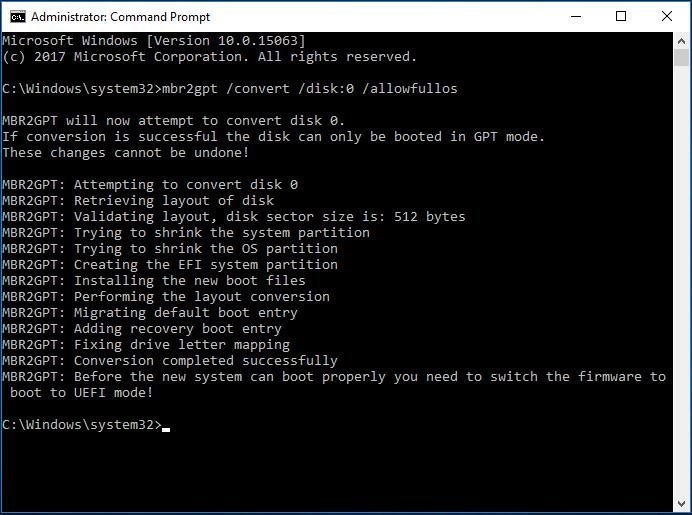
The most common issue on forums. The cause is that the Windows drive is formatted as MBR, not GPT. When CSM is disabled, the system loses the ability to boot from an MBR drive.
Solution: convert the drive from MBR to GPT using the mbr2gpt /convert /disk:0 /allowfullos command in an administrator command prompt. Or reinstall Windows in UEFI mode. If the PC won't start at all, reset the BIOS using the CMOS jumper on the motherboard.
System Freezes or Crashes Under GPU Load
Occurs on older GPUs or with outdated drivers. ReBAR can cause instability on GPUs that formally support the technology but work poorly with it.
Solution: update GPU drivers to the latest version. If crashes continue, try setting ReBAR to Auto instead of Enabled. For NVIDIA RTX 3000 cards, a VBIOS update via the NVIDIA Resizable BAR Firmware Update Tool may help.
NVMe Drives Disappear After Enabling Above 4G Decoding
On some older motherboards, enabling Above 4G Decoding causes the system to stop recognizing NVMe drives. This is related to BIOS address space limitations.
Solution: update the BIOS to the latest version — manufacturers typically fix this issue in updates. If the update doesn't help, check whether NVMe is running in RAID mode and try switching to AHCI.
ReBAR Is Enabled in BIOS but Doesn't Work in Windows
GPU-Z shows "Not Available" or "Disabled" even though everything is enabled in the BIOS. Common causes: CSM is still enabled (double-check), the GPU driver doesn't support ReBAR (update the driver), or the BIOS has corrupted settings.
Solution: reset the BIOS to factory defaults (Load Optimized Defaults), then re-enable all three settings in the correct order: CSM → Disabled, Above 4G → Enabled, ReBAR → Enabled.
No ReBAR Option in BIOS
The ReBAR option does not appear until Above 4G Decoding is enabled.
Enable it first, save the settings (F10), reboot, and re-enter the BIOS — the ReBAR option should appear. If it still doesn't, update the BIOS to the latest version. On older boards where the manufacturer hasn't added ReBAR support, you can use the ReBarUEFI mod (github.com/xCuri0/ReBarUEFI), but this is an unofficial solution and requires firmware expertise.
Need Help?
Have any questions, something is unclear, or you can’t connect?
Contact support — we're happy to assist!
Email support at support@kryptex.com.